
A battery percentage in the taskbar tells you how much charge is available now. It does not tell you how much capacity the battery has lost since it was new. For that, Windows 11 can generate an HTML battery report with Design Capacity, Full Charge Capacity, usage history and, on supported laptops, cycle count.
Want the quick result?
Generate the report using the steps below, then let the private browser-based checker calculate the reported capacity health and wear.
Open the free battery health checker1. Create a Windows 11 battery report
Using Windows 10? The command is the same, but the menus differ. Follow the Windows 10 battery report guide.
Have a Dell, HP or Lenovo laptop? Your manufacturer’s own tools can also test the battery; see how to check battery health on Dell, HP and Lenovo laptops.
Windows 11 battery report command
- Open the Start menu and search for Command Prompt.
- Right-click Command Prompt and choose Run as administrator.
- Enter
powercfg /batteryreportand press Enter. - Windows displays the saved location of
battery-report.html. Open that folder in File Explorer. - Double-click
battery-report.htmlto open it in your web browser. If Windows asks which app to use, choose a browser such as Edge or Chrome.
If you want to choose a specific location, Microsoft also documents the output option. For example, powercfg /batteryreport /output "C:\battery-report.html" asks Windows to save the file at the root of the C drive. A protected folder may require administrator access.
2. Calculate the reported battery health
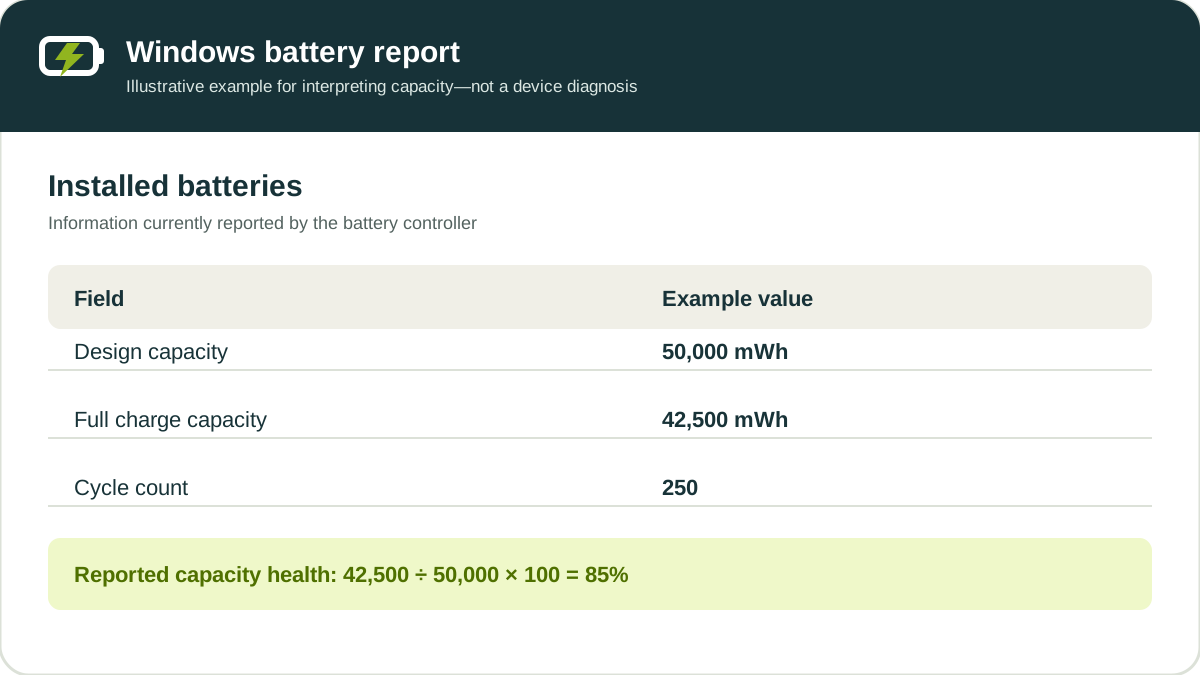
Open the report and find the Installed batteries section. Record these two numbers:
- Design Capacity: the reference capacity assigned to the battery when new.
- Full Charge Capacity: the maximum charge the system currently reports.
Use this formula:
Example: 42,500 mWh / 50,000 mWh x 100 = 85%.
You can enter both values manually in our checker or select the original HTML report. File analysis happens in your browser; the checker does not send the selected report to our server.
Worked example: turn three report values into a decision
Suppose a report lists a Design Capacity of 50,000 mWh, a Full Charge Capacity of 42,500 mWh and 250 cycles. The capacity calculation produces 85%. That result suggests measurable wear, but it does not by itself justify replacing the battery.
- Confirm the units. Both capacity values are in mWh, so they can be compared directly.
- Check the trend. If recent capacity-history entries stay close to 42,500 mWh, the estimate is more useful than a single unusual reading.
- Compare real runtime. If the laptop still lasts long enough for your normal work, monitoring may be more practical than immediate replacement.
- Separate safety from capacity. Swelling, odor, leakage or unusual heat requires action regardless of the percentage.
This decision process is more useful than treating 80% or any other rounded number as a universal pass-or-fail rule. Manufacturer diagnostics, warranty terms and model-specific limits can differ.
3. Interpret the percentage carefully
An 85% result means the battery reports about 85% of its design capacity. It does not mean the laptop will last for 85% of a fixed number of hours. Actual runtime changes with screen brightness, processor and graphics workload, wireless activity, connected devices, power mode and temperature.
| Reported health | Practical interpretation |
|---|---|
| 90-100% | Capacity remains close to the design reference. |
| 80-89% | Normal wear is present; runtime may still be practical. |
| 70-79% | Shorter unplugged runtime is increasingly noticeable. |
| 60-69% | Capacity loss is substantial; replacement may be worth planning. |
| Below 60% | Confirm the reading and consider inspection or replacement. |
These ranges are practical context, not manufacturer warranty rules. Your laptop maker may use different thresholds and diagnostic tests. Read our battery health percentage guide for the limitations behind the numbers.
How to check battery life on Windows 11
To review estimated runtime, open your battery report and scroll to Battery life estimates. This section estimates how long the battery could last based on recorded use. It is different from battery health: health compares capacity with the design value, while battery life describes time on a charge.
Compare the estimate with your normal unplugged use. Workload, brightness and power settings can change runtime, so the report does not guarantee how many hours your next charge will last. For a section-by-section walkthrough, see how to read a Windows battery report.
If capacity looks reasonable but the charge still disappears unusually quickly, use the evidence-led workflow for diagnosing fast laptop battery drain in Windows 11 to separate active apps, sleep drain and charging problems.
Battery diagnostics in Windows 11: what the report can tell you
The built-in battery report helps you review reported capacity, usage and changes over time. It does not physically test the battery or rule out hardware faults. If the laptop shuts down unexpectedly, fails to charge or repeatedly reports unusual capacity values, use the battery diagnostic tool recommended by your laptop manufacturer and follow its support guidance.
Use any diagnostic result alongside the capacity history and actual runtime. A battery report by itself cannot determine whether a battery qualifies for warranty replacement.
What cycle count tells you
A cycle is based on accumulated battery use, not simply the number of times a charger is connected. Two half-capacity discharges may together count roughly as one cycle. Some Windows reports do not show a cycle count because the laptop firmware does not expose it. A blank value does not mean zero cycles.
Cycle count should support the capacity result, not replace it. Battery chemistry, heat, age, storage and usage patterns can make two batteries with similar counts behave differently. See the complete guide to checking laptop battery cycle count in Windows 11.
Check capacity history for a trend
The Battery capacity history table can reveal whether Full Charge Capacity has declined gradually or changed suddenly. A single unusual reading may reflect calibration, a firmware update, a replaced battery or incomplete reporting. Compare multiple entries before treating one point as conclusive.
If you are investigating charge lost while the laptop was asleep, see what Suspended and Connected Standby mean in a Windows battery report. Those power-state entries describe usage history and should be interpreted separately from capacity health.
If reported capacity falls abruptly, create a fresh report after several normal charge and discharge sessions. Check for manufacturer firmware and diagnostic guidance. Avoid repeatedly forcing deep discharges solely to “calibrate” a modern battery unless the manufacturer specifically instructs it.
Common mistakes to avoid
- Do not confuse the taskbar charge percentage with long-term capacity health.
- Do not assume a missing cycle count is zero.
- Do not diagnose swelling, heat or electrical problems from capacity values.
- Do not compare mWh with mAh without voltage-aware conversion.
- Do not replace a usable battery only because of a rounded score if its runtime still meets your needs.
Windows 11 battery health FAQs
What command checks battery health in Windows 11?
Run powercfg /batteryreport in Command Prompt. The command creates an HTML report rather than a single pass-or-fail score. Compare Full Charge Capacity with Design Capacity to estimate reported capacity health.
Where is the Windows 11 battery report saved?
Windows shows the exact saved path in Command Prompt after the command finishes. To choose the location yourself, use powercfg /batteryreport /output "C:\battery-report.html".
Why is cycle count missing from my battery report?
Some laptop firmware does not expose cycle-count data to Windows. A blank field means the value was not reported; it does not mean the battery has completed zero cycles.
Can a Windows battery report detect an unsafe battery?
No. It reports capacity and usage data but cannot certify physical safety. Stop using the laptop and follow manufacturer guidance if the battery is swollen, leaking, unusually hot, smoking, producing an odor or deforming the case.
How this guide was verified
Battery Health Lab checked the command syntax and field names against Microsoft documentation and reviewed them with a locally generated sample battery-report file. The worked example uses clearly labeled illustrative values so readers can repeat the calculation without sharing their own report.
We do not assign manufacturer warranty status, predict remaining battery life or claim that capacity data can detect a physical defect. If Microsoft changes the report format or command behavior, this page will be reviewed and its modified date updated.
Official source
Microsoft documents the Powercfg batteryreport option and provides separate Windows battery-care guidance.