
Windows 10 cannot show battery wear in the Settings app. To see how much capacity your laptop battery has lost, you need the battery report that Windows creates with the powercfg command. It takes less than a minute and does not require any extra software.
powercfg /batteryreport, then open the battery-report.html file from the path Windows shows.Already have the report?
Open it in the private browser-based checker to see reported capacity health, wear and cycle data in one place. The file never leaves your computer.
Open the free battery checker1. Create the battery report in Windows 10
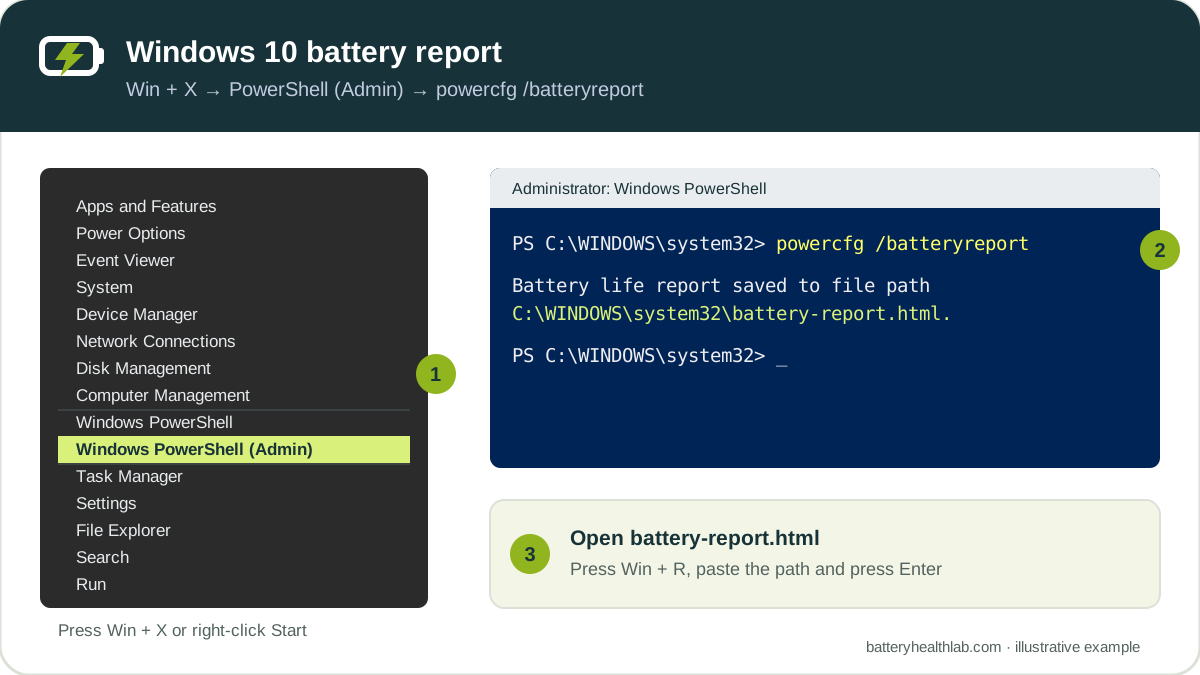
Option A: Windows PowerShell (Admin)
- Press Win + X or right-click the Start button.
- Select Windows PowerShell (Admin). On some Windows 10 setups this menu shows Command Prompt (Admin) instead. Either one works.
- Select Yes on the User Account Control prompt.
- Type
powercfg /batteryreportwith a space before the slash and press Enter. - Windows replies with Battery life report saved to file path followed by the location of the file.
Option B: Command Prompt
Type cmd in the search box on the taskbar, right-click Command Prompt and choose Run as administrator. Then run the same command: powercfg /batteryreport.
Save the report to your desktop
The folder syntax depends on which window you use:
- Command Prompt:
powercfg /batteryreport /output "%USERPROFILE%\Desktop\battery-report.html" - PowerShell:
powercfg /batteryreport /output "$env:USERPROFILE\Desktop\battery-report.html"
PowerShell does not understand %USERPROFILE%, which is a common reason the desktop command fails in Windows 10.
2. Find and open battery-report.html
Windows saves the report in the folder the command ran from. In an administrator window that is usually C:\Windows\system32\battery-report.html. In a normal window it is usually your user folder, such as C:\Users\YourName\battery-report.html.
- Copy the path Windows printed after the command.
- Press Win + R, paste the path and press Enter.
- The report opens in your default browser, such as Edge or Chrome.
If the file does not open or appears to be missing, see how to find the generated file. Those steps also apply to Windows 10.
What Windows 10 Settings can and cannot show
Open Settings → System → Battery. Windows 10 shows the current charge level, Battery saver options and a link called See which apps are affecting your battery life, which lists battery use by app.
Settings does not show Design Capacity, Full Charge Capacity, wear or cycle count. That is why the battery report is the main battery-health tool in Windows 10. Windows 11 has a different Power & battery page; see the Windows 11 battery health guide if you have upgraded.
3. Check these three values first
Scroll to Installed batteries in the report:
- Design Capacity: what the battery held when new.
- Full Charge Capacity: what it holds now.
- Cycle Count: how many full charge cycles the battery reports, if the firmware provides it.
Divide Full Charge Capacity by Design Capacity and multiply by 100 to get reported battery health. You can enter both numbers in the battery health calculator. For a full walkthrough of every section, read how to read a Windows battery report.
What is different on older Windows 10 laptops
Many laptops still running Windows 10 are several years old. These results are common on them and are not always a sign of a fault:
| What you see | Why it is common | What to do |
|---|---|---|
| Health between 60% and 80% | Lithium-ion batteries lose capacity with age and charge cycles. | Compare with real runtime and read when to replace a laptop battery. |
| Cycle Count is blank | Some older batteries and firmware do not report it to Windows. | See why cycle count can be missing. |
| Full Charge Capacity above Design Capacity | Calibration differences or a replacement battery with a different rating. | Read results above 100%. |
| Connected Standby: Not supported | Many older laptops use traditional S3 sleep instead of Modern Standby. | This is normal. See what “Not supported” means. |
| Very short battery life estimates | Estimates follow real usage and the battery's current capacity. | See battery life estimates explained. |
Common Windows 10 battery report errors
- The term 'powercfg/batteryreport' is not recognized as the name of a cmdlet: add a space. Details.
- 'batteryreport' is not recognized as an internal or external command: type the full command on one line. Details.
- An unexpected error (0x422) has occurred: a required Windows service is disabled. Details.
- The file is not in the folder: check the exact path Windows printed. Details.
Windows 10 support and your battery
Windows 10 reached end of support on October 14, 2025. Microsoft has since extended consumer Extended Security Updates (ESU) to October 12, 2027 for eligible PCs running Windows 10 version 22H2.
The battery report is part of Windows itself, so it keeps working on Windows 10. Upgrading to Windows 11 does not restore lost battery capacity: wear comes from the battery's age and use, not from the Windows version. If the laptop otherwise works well and the report shows low health, replacing the battery is often cheaper than replacing the laptop.
Frequently asked questions
Does powercfg /batteryreport work in Windows 10?
Yes. The battery report is built into Windows 10 and Windows 11. Run powercfg /batteryreport in an administrator PowerShell or Command Prompt window and Windows saves an HTML report.
Where is the battery report saved in Windows 10?
Windows saves battery-report.html in the folder the command ran from. In an administrator window that is usually C:\Windows\system32. Windows prints the exact path after the command finishes.
Can I check battery health in Windows 10 without a command?
Not with Settings alone. Settings shows charge level, Battery saver and battery use by app, but not Design Capacity or Full Charge Capacity. Use the battery report or your laptop manufacturer's support app.
Is the Windows 10 battery report different from Windows 11?
The report sections and values are the same. The differences are the menus you use to open an administrator window and what the Settings app shows.
How we verified this guide
The command and output options follow Microsoft's Powercfg battery report documentation, which applies to both Windows 10 and Windows 11. Menu names reflect the standard Windows 10 Win + X menu and Settings app. Support dates reflect Microsoft's Windows 10 ESU documentation as of October 2026.
Bottom line
In Windows 10, open Windows PowerShell (Admin) from the Win + X menu, run powercfg /batteryreport and compare Design Capacity with Full Charge Capacity. Lower health is normal on an older laptop; judge it against the runtime you actually get.