
Want the exact percentage?
Brand tools usually show a status such as Good or Weak. The Windows battery report shows the capacity values behind it, and the free checker turns them into a health percentage.
Open the free battery health checker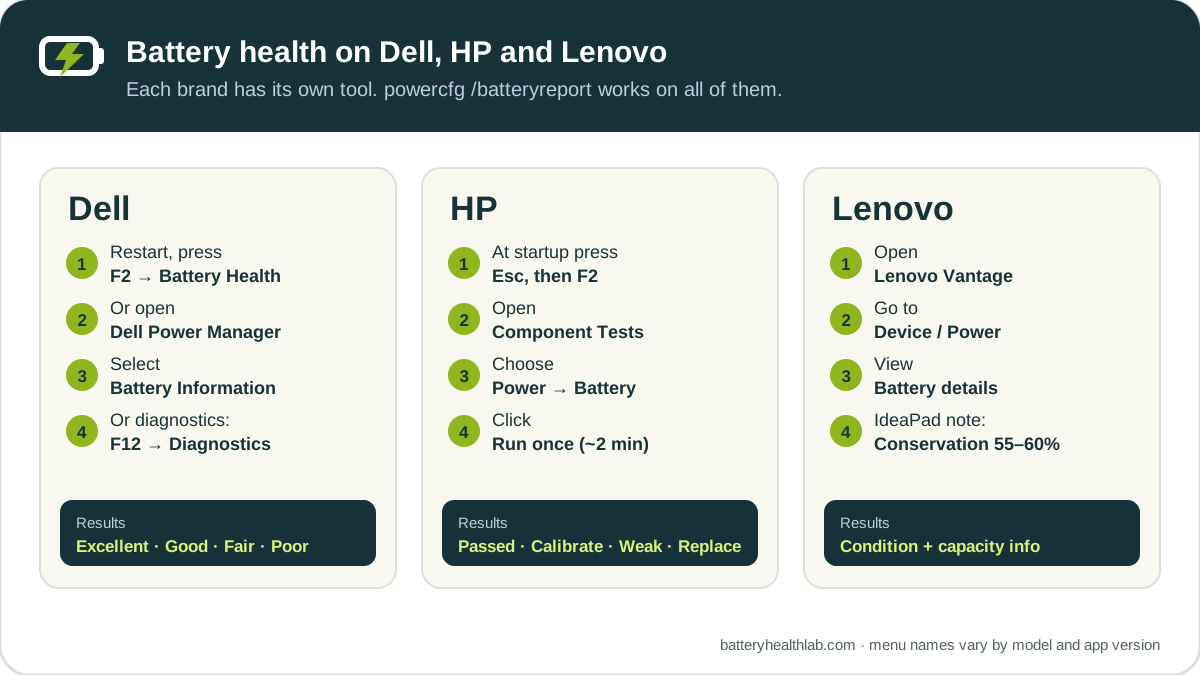
The method that works on every brand
Every Windows laptop, whatever the brand, can create the built-in battery report with powercfg /batteryreport. It lists Design Capacity, Full Charge Capacity and, when the firmware reports it, Cycle Count. Follow the steps for Windows 11 or Windows 10.
Manufacturer tools add something the report cannot: a hardware test and a simple status from the maker. Use both when you are deciding whether to replace a battery.
Dell: BIOS, diagnostics and Dell apps
Dell documents four ways to check battery health:
- BIOS: restart and press F2 repeatedly to open BIOS setup. Look for Battery Health, usually under Overview or General.
- SupportAssist on-board diagnostics: restart and press F12 to open the One Time Boot menu, choose Diagnostics and let the test finish. Then open Advanced Test → System Info and check the Health tab.
- Dell Power Manager: open it from the Start menu, select Battery Information and read the Battery Health status.
- Dell Optimizer: open it from the Start menu, select Power, then About my battery.
Dell reports health as Excellent, Good, Fair, Poor or Unknown. Dell suggests considering a replacement when the status shows Fair or Poor. If diagnostics return an error code, write it down together with the validation code and the laptop’s service tag before contacting Dell.
Dell charge settings
Dell Power Manager offers Standard, ExpressCharge, Primarily AC Use, Adaptive and Custom charge modes, depending on the model. If the laptop stays plugged in most of the time, Primarily AC Use or a Custom range reduces wear. Dell Optimizer offers an Intelligent Charging feature that learns your usage instead.
HP: HP PC Hardware Diagnostics battery test
HP’s battery test runs before Windows starts:
- Fully charge the battery, then disconnect the AC adapter.
- Hold the power button for at least five seconds to turn the laptop off.
- Turn it on and immediately press Esc repeatedly, about once a second.
- When the startup menu appears, press F2 to open HP PC Hardware Diagnostics.
- Choose Component Tests → Power → Battery, then Run once.
The test takes about two minutes. If calibration is needed, it can take 12 to 14 hours, so run it when you do not need the laptop.
| HP result | What it means |
|---|---|
| Passed | The battery works as expected. |
| Calibrate | The battery works, but its charge gauge needs calibrating. |
| Weak or Very Weak | Normal ageing has noticeably shortened runtime. HP recommends replacing it to get the most runtime. |
| Replace | The battery reports a failure and should be replaced as soon as possible. |
| Failure ID | A hardware failure. Note the status and Failure ID for HP support. |
HP charge settings
HP business laptops include HP Battery Health Manager, and HP gaming laptops use Adaptive Battery Optimizer. Both manage charging to reduce wear when the laptop spends a lot of time plugged in.
Lenovo: Lenovo Vantage
On most Lenovo laptops, Lenovo Vantage is the place to check the battery. Open Vantage, go to the device or power section and open the battery details to see the battery’s condition and capacity information. Menu names vary slightly between Vantage versions and between ThinkPad, IdeaPad, Yoga and Legion models.
Conservation Mode and charge thresholds
- IdeaPad and similar models: Conservation Mode stops charging at about 55–60% and shows “plugged in, not charging”. That is normal, not a fault. Turn it off in Vantage when you need a full charge.
- ThinkPad models: Vantage offers a Battery Charge Threshold, where you choose the percentage at which charging starts and stops.
Lenovo recommends a battery-lifespan mode such as Conservation Mode when a laptop is kept on AC power all the time.
Brand status vs battery report percentage
Brand tools and the Windows report answer slightly different questions, so they can disagree. A Dell “Good” or HP “Passed” can sit alongside an 80% capacity in the report. That combination is common and usually fine; see is 80% battery health good?
| Brand tool | Windows battery report | |
|---|---|---|
| What you get | Status (Good, Weak, Poor) and a hardware test | Exact capacity values and history |
| Best for | Detecting a failing or faulty battery | Measuring wear and tracking it over time |
| Works on | That brand only | Every Windows laptop |
If either source points to a problem, read when to replace a laptop battery before ordering a new one.
Frequently asked questions
How do I check battery health on a Dell laptop?
Restart and press F2 to open BIOS, then look for Battery Health under Overview or General. You can also use Dell Power Manager (Battery Information) or Dell Optimizer (Power, About my battery). Dell reports health as Excellent, Good, Fair or Poor.
How do I check battery health on an HP laptop?
Turn the laptop off, turn it on and press Esc repeatedly, then press F2 to open HP PC Hardware Diagnostics. Choose Component Tests, Power, Battery and Run once. The test takes about two minutes and reports Passed, Calibrate, Weak, Very Weak or Replace.
How do I check battery health on a Lenovo laptop?
Open Lenovo Vantage and view the battery details in the device or power section. For exact capacity numbers, create the Windows battery report with powercfg /batteryreport.
Why does my Lenovo laptop stop charging at 60%?
Conservation Mode is turned on. It stops charging at about 55–60% to extend battery lifespan when the laptop is mostly plugged in. Turn it off in Lenovo Vantage when you need a full charge.
Does the Windows battery report work on Dell, HP and Lenovo laptops?
Yes. It works on any Windows laptop and reads the capacity values the battery reports. Use it together with the manufacturer’s battery test for the clearest picture.
How we verified this guide
Steps and status names come from the manufacturers’ own support pages: Dell’s guide to checking laptop battery health and improving battery performance, HP’s testing and calibrating the battery, and Lenovo’s articles on charging stopping at 60% and extending battery life. Menu names can change with app and BIOS updates.
Bottom line
Use your laptop maker’s tool for a quick status and a hardware test, and the Windows battery report for the exact capacity numbers. Together they tell you whether the battery is simply ageing or actually failing.