
Rule out a worn battery
Create a Windows battery report and the free checker shows how much of its original capacity your battery still holds.
Open the free battery health checkerWhy a battery can drain while the charger is connected
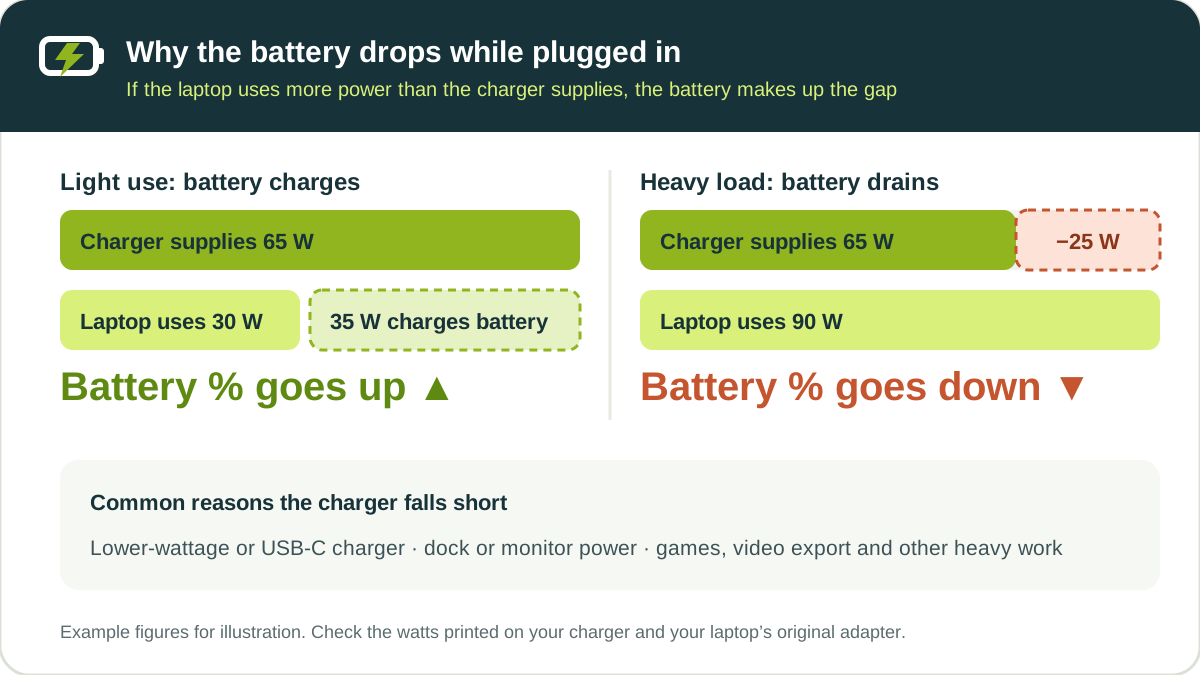
A charger supplies a fixed amount of power, measured in watts. The laptop uses that power first and sends anything left over to the battery. When the laptop needs more than the charger can supply, the battery makes up the difference, so the percentage falls even though the laptop is plugged in.
That is why the problem often appears only during games, video exports or other heavy work, and disappears when the laptop is idle.
Match the symptom to the likely cause
| What you see | Most likely cause | Where to start |
|---|---|---|
| Drops only while gaming or doing heavy work, recovers when idle | Charger supplies less power than the laptop uses | Check the charger’s wattage |
| Falls from 100% to about 94–95%, then charges again | Normal top-up behavior | When a small drop is normal |
| Stops at 80%, 60% or 50% and stays there | A battery charge limit | Charge limits explained |
| Falls even when idle, or shows “not charging” at random levels | Charger, cable, port or driver problem | Step-by-step fixes |
| Runtime is very short and the laptop shuts down unexpectedly | Worn battery | When the battery is the problem |
Check the charger’s wattage
Look at the label on the charger. It lists its output in watts (W), or as volts × amps. Compare it with the charger that came with your laptop or the wattage in the laptop’s manual.
- USB-C chargers, phone chargers and travel chargers often supply less power than the laptop’s original adapter. The laptop may still run, but it can lose charge under load.
- Docks, hubs and USB-C monitors pass through only a limited amount of power. Try the laptop’s own charger plugged directly into the laptop.
- Dell laptops show the detected adapter in BIOS. Dell says that if it appears as “Unknown” or with the wrong wattage, the laptop might not charge properly or may charge slowly, and recommends a Dell-approved charger that matches the laptop’s wattage.
- Surface devices: Microsoft advises switching to the power supply designed for your Surface and disconnecting accessories that use a lot of power to see if it then charges.
If it only drops under heavy load
Gaming laptops and workstations can draw more power at full load than some chargers deliver, especially if a smaller or third-party charger is used. To reduce the gap:
- Use the original, full-wattage charger.
- In Windows 11, open Settings → System → Power & battery and set Power mode to Balanced instead of Best performance.
- Close apps you are not using. Open Task Manager and sort by CPU or GPU to find programs working in the background.
- Lower screen brightness and frame rate limits in games.
If the drop stops when the laptop is idle and the battery recharges afterwards, the charger is simply too small for that workload, not faulty.
When a small drop is normal
Many laptops do not top up the battery the moment it falls below 100%. Lenovo, for example, says that once a ThinkPad battery is fully charged it must discharge to 94% or lower before it is allowed to recharge. Seeing the percentage drift a few points while plugged in, then recover, is expected.
A battery that stops at a fixed level such as 80% or 60% is also normal when a charge limit is on. See why a laptop stops charging at 80% or 60%.
Step-by-step fixes
- Use the original charger, plugged directly into a wall outlet. Make sure both ends are fully seated. Try a different outlet.
- Inspect the cable and port. Look for a bent connector, damaged cable or dust in the charging port. On laptops with several USB-C ports, check the manual for the ports that support charging.
- Check what the laptop detects. On Dell laptops, open BIOS and confirm the adapter type and wattage. “Unknown” or the wrong wattage points to the charger, cable or port.
- Reinstall the battery driver. Microsoft’s steps: open Device Manager, expand Batteries, right-click Microsoft ACPI-Compliant Control Method Battery, choose Uninstall device, then select Action → Scan for hardware changes and restart. Microsoft says not to do this on a Surface Pro X.
- Install updates. Run Windows Update and install the latest BIOS and drivers from your laptop maker.
- Reset Windows power plans. In an administrator Command Prompt, run
powercfg -restoredefaultschemes, then restart. - Run the maker’s battery test. Dell diagnostics, HP PC Hardware Diagnostics and Lenovo Vantage all include one; see battery tests on Dell, HP and Lenovo.
When the battery is the problem
A heavily worn battery holds much less energy than when it was new, so any shortfall from the charger empties it faster and runtime away from the charger is short. Create a battery report and compare Full Charge Capacity with Design Capacity; the free checker turns those values into a health percentage. If the battery also drains quickly on battery power, see why a laptop battery drains so fast, and for replacement advice see when to replace a laptop battery.
Frequently asked questions
Is it bad if my laptop battery goes down while plugged in?
An occasional small drop is not harmful, and many laptops let the battery fall a few percent before topping it up. A steady drop during normal use means the charger is not keeping up or there is a charger, port or battery problem, so it is worth checking.
Why does my laptop lose charge while plugged in when gaming?
Games can make the laptop draw more power than the charger supplies, so the battery covers the difference. Use the original full-wattage charger, set Windows Power mode to Balanced and close background apps.
Can a USB-C charger cause my laptop battery to drain?
Yes, if it supplies fewer watts than the laptop needs. The laptop may still run on it, but under load the battery can slowly discharge. Compare the charger's wattage with the laptop's original adapter.
Why does my laptop go from 100% to 95% while plugged in?
That is usually normal. Many laptops wait until the battery falls a few percent before charging again. Lenovo, for example, says a fully charged ThinkPad battery must discharge to 94% or lower before it recharges.
Why does Windows say plugged in, not charging?
If it stays at a fixed level such as 80% or 60%, a battery charge limit is usually on. If it happens at random levels, check the charger, cable, port and battery driver.
How we verified this guide
Charger checks, driver steps and charging behavior come from manufacturers’ support pages: Dell’s laptop battery troubleshooting guide, Microsoft’s Surface battery won’t charge article and Lenovo’s ThinkPad charging guide. Wattage figures in the illustration are examples, not measurements of a specific laptop.
Bottom line
A battery that falls while plugged in usually means the charger is supplying less power than the laptop is using. Use the original full-wattage charger plugged directly into the laptop, reduce heavy workloads, and if the drop continues when idle, work through the charger, driver and battery checks above.