
Check the battery while you are here
A charge limit is normal. Worn capacity is a different question. Create a Windows battery report and the free checker shows your battery health percentage.
Open the free battery health checkerWhy a laptop stops charging before 100%
Lithium-ion batteries wear faster when they sit at a full charge for long periods, especially when they are warm. Laptops that stay plugged in all day spend most of their life in exactly that state, so manufacturers include settings that stop charging at a lower level.
When a limit is active, Windows usually shows the battery as plugged in, not charging. The laptop still runs on mains power; it simply stops topping up the battery. Lenovo describes this as a battery self-protection feature and says it is not a bug.
The clue is a fixed number. If charging always stops at the same level, such as 80% or 60%, look for a charge limit first. If it stops at random levels, or the percentage falls while plugged in, see when it is not a charge limit.
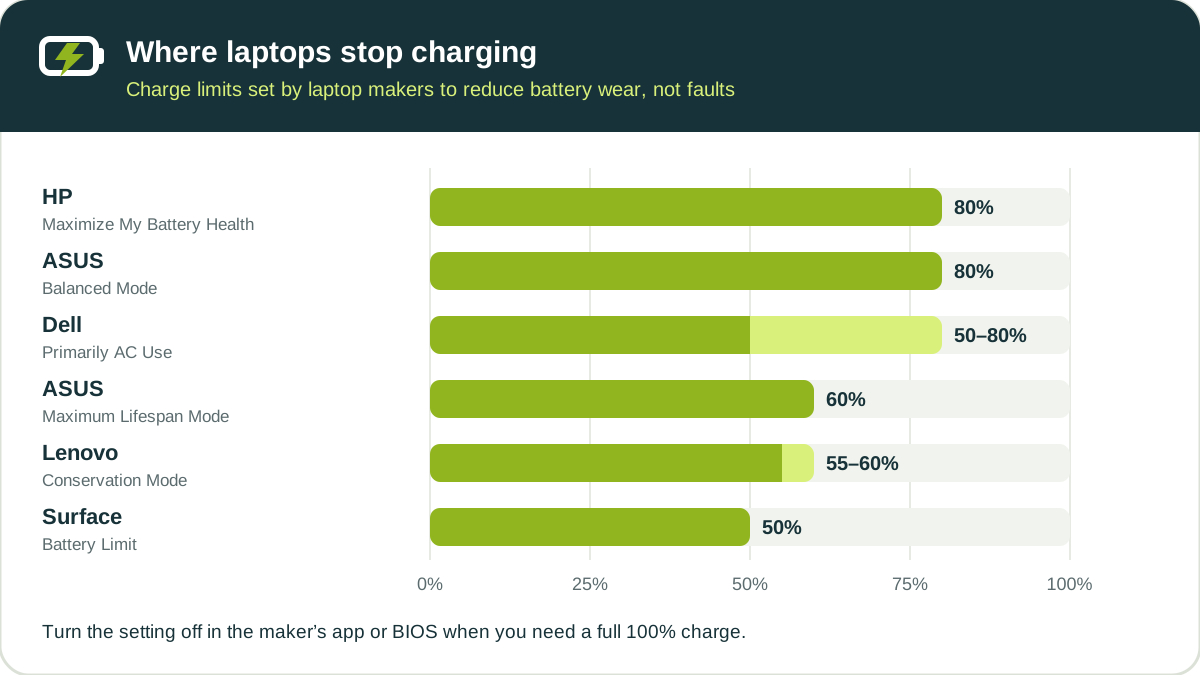
Charge limit settings by brand
| Brand | Setting | Where charging stops | Where to change it |
|---|---|---|---|
| Dell | Primarily AC Use | Between 50% and 80% | Dell Power Manager, Dell Optimizer or BIOS |
| Dell | ExpressCharge | 80% in about one hour | Dell Power Manager or BIOS |
| Dell | Custom | The limit you set | Dell Power Manager or BIOS |
| HP | Maximize My Battery Health | 80% | HP Battery Health Manager in BIOS |
| HP | Let HP Manage My Battery Charging | Varies with usage and temperature | HP Battery Health Manager in BIOS |
| Lenovo (IdeaPad and similar) | Conservation Mode | About 55–60% | Lenovo Vantage: Device → My Device Settings → Battery |
| Lenovo ThinkPad | Custom battery charge threshold | The threshold you set | Lenovo Vantage: Device → My Device Settings → Battery |
| ASUS | Balanced Mode | Stops above 80%, resumes below 78% | MyASUS: Device Settings → Battery Care Mode |
| ASUS | Maximum Lifespan Mode | Stops above 60%, resumes below 58% | MyASUS: Device Settings → Battery Care Mode |
| Microsoft Surface | Battery Limit | 50% | Surface UEFI: Boot configuration → Advanced Options |
Dell also offers an Adaptive mode that learns your usage and adjusts charging on its own, so the stopping point can change from day to day. For brand battery tests and health checks, see how to check battery health on Dell, HP and Lenovo.
How to charge to 100% when you need it
- Dell: open Dell Power Manager or Dell Optimizer and choose Standard. If the limit is set in BIOS, Dell advises changing it to Standard there to allow full charging.
- HP: open BIOS settings and change HP Battery Health Manager from Maximize My Battery Health to Let HP Manage My Battery Charging. HP says the setting can be changed at any time from BIOS.
- Lenovo: in Lenovo Vantage, go to Device → My Device Settings → Battery. Turn Conservation Mode off, or on a ThinkPad turn the custom battery charge threshold off.
- ASUS: in MyASUS, go to Device Settings → Battery Care Mode and choose Full Capacity Mode.
- Surface: restart into Surface UEFI by holding Volume Up while pressing Power, then turn off Enable Battery Limit under Boot configuration → Advanced Options. On Surface Go, the setting is under Kiosk Mode.
Should you leave the limit on?
If the laptop stays on the charger most of the day, leaving a limit on is a sensible default. Lenovo and ASUS both recommend their lower-limit modes for laptops that are always on AC power, and Microsoft recommends Surface Battery Limit for devices that stay plugged in.
If you rely on battery life away from a desk, switch to full charging before you leave. Many people turn the limit off only for travel days.
Not sure how you use the laptop? Your Windows battery report shows it. In the Usage history section, compare AC DURATION with BATTERY DURATION. If AC time is much higher, a charge limit suits you.
When it is not a charge limit
If the battery stops at random levels, stays near 0%, or drops while plugged in, a charge limit is not the cause. Work through these checks, most of which come from Dell’s battery troubleshooting guidance and apply to other brands too:
- Check the charger and port. Use the original or a matching-wattage charger, and make sure the plug is fully seated. On Dell laptops, BIOS can show the adapter type; “Unknown” or the wrong wattage points to a faulty or incompatible charger or a port problem.
- Watch the charging light. On Dell laptops, a blinking amber light signals a battery error or charging problem, and no light means no power is reaching the laptop.
- Reset Windows power plans. In an administrator Command Prompt, run
powercfg -restoredefaultschemes, then restart. - Update BIOS and drivers. Install the latest BIOS and chipset drivers from your laptop maker, then restart.
- Run the maker’s battery test. Use Dell diagnostics, HP PC Hardware Diagnostics or Lenovo Vantage, as described in our brand guide.
- Check the battery’s capacity. Create a battery report and use the free checker. A heavily worn battery can also behave unpredictably; see when to replace a laptop battery.
Frequently asked questions
Why does my laptop say “plugged in, not charging”?
Usually because a battery charge limit is turned on. Lenovo notes that a “60% available (plugged in, not charging)” message indicates that this kind of setting may be enabled. If the percentage is well below any limit and never rises, check the charger, the charging port and the battery instead.
Is it bad for a laptop to stop charging at 80%?
No. Stopping at 80% is a deliberate setting that reduces battery wear when the laptop stays plugged in. The trade-off is less runtime from each charge, so turn the limit off before a day away from the charger.
How do I make my laptop charge to 100%?
Turn off the charge limit: choose Standard charging in Dell Power Manager or BIOS, turn off Maximize My Battery Health in HP BIOS, turn off Conservation Mode or the charge threshold in Lenovo Vantage, choose Full Capacity Mode in MyASUS, or turn off Battery Limit in Surface UEFI.
Why does my Lenovo laptop stop charging at 60%?
Lenovo Conservation Mode keeps the battery at about 55–60%. Lenovo says this is not a bug. Turn it off in Lenovo Vantage under Device, My Device Settings, Battery.
Does Windows 11 have its own charge limit?
Windows 11 does not have one built-in charge limit that works on every laptop. The limit comes from your laptop maker’s firmware or app, so change it there.
How we verified this guide
Charge levels and menu paths come from the manufacturers’ own support pages: Dell’s laptop battery troubleshooting guide, HP’s HP Battery Health Manager article, Lenovo’s battery not charging, stops at 60%, ASUS’s introduction to ASUS Battery Health Charging and Microsoft’s Surface Battery Limit setting. Available modes and menu names vary by model, app version and BIOS.
Bottom line
A laptop that always stops at the same level, such as 80% or 60%, is almost always following a charge limit, not failing. Leave the limit on if the laptop lives on the charger, turn it off when you need every hour of battery, and run the checks above if charging stops at random levels.